Throttle
The throttle is the main screen of Model Train Script. From here you control your locomotives, interact with your track layout, and manage automation — all while staying connected to your command station.
On iPhone the throttle uses tabs to switch between the three sections. On iPad all sections are visible at once: the layout fills the main area, while a collapsible sidebar gives access to vehicle control and automation.
Connection & track power
The power button in the top-right corner shows your connection status:
- Gray — Not connected. Tap to connect to your command station.
- Green — Connected, track power is on.
- Red — Connected, track power is off (or short circuit detected).
Tap the button to toggle track power on or off.
Drive
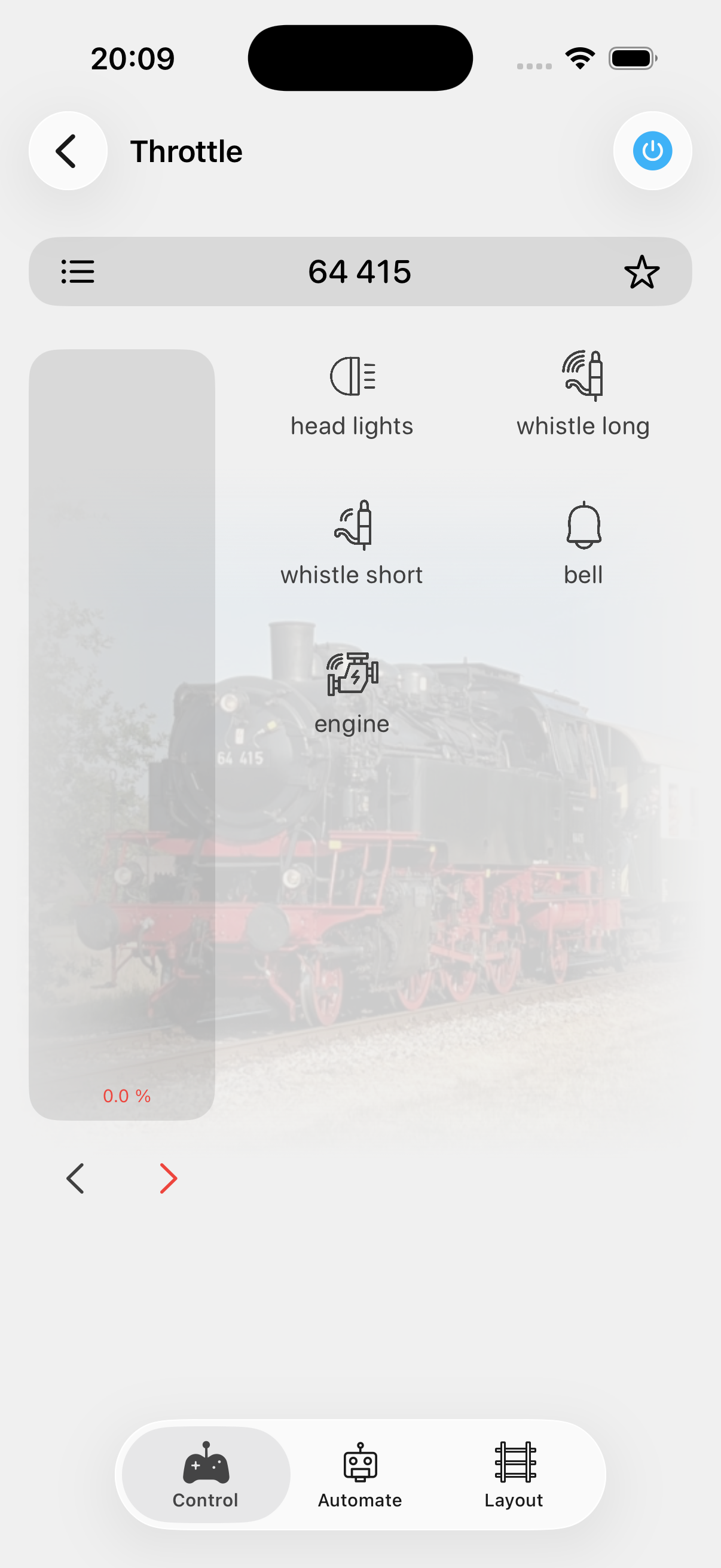
After selecting a locomotive from the vehicle list you can control it directly.
Speed
The vertical bar on the left controls speed. Drag up or down to adjust — the control is relative to where you touch, so you don't have to start from the bottom. The current speed percentage is displayed on the bar.
Direction
Below the speed bar, two chevron buttons set the direction (forward / reverse). The active direction is highlighted.
Functions
The right side shows a scrollable grid of the locomotive's functions (lights, horn, coupler, etc.). Tap a function to toggle it. Functions can be either toggle (stays on/off) or momentary (short pulse), depending on how you configured them in the vehicle settings.
Vehicle selection
Tap the list icon in the top-left to open the vehicle selector. It shows your recently used vehicles at the top, followed by your full vehicle catalog. You can filter by tags to quickly find the right locomotive.
Vehicle profiles
If your locomotive has speed profiles configured (idle, shunting, slow, medium, fast), tap the star icon to apply a preset with one tap. A profile sets speed, direction, and function states all at once.
Consisting
When a vehicle is part of a consist, the speed and direction controls are hidden — the consist address takes over. If you configured a conditional consist on the vehicle, the consist can be activated or deactivated via a function key.
Layout
The layout tab shows your track plan as an interactive overview. Accessories like turnouts and signals display their current state and can be toggled by tapping them.
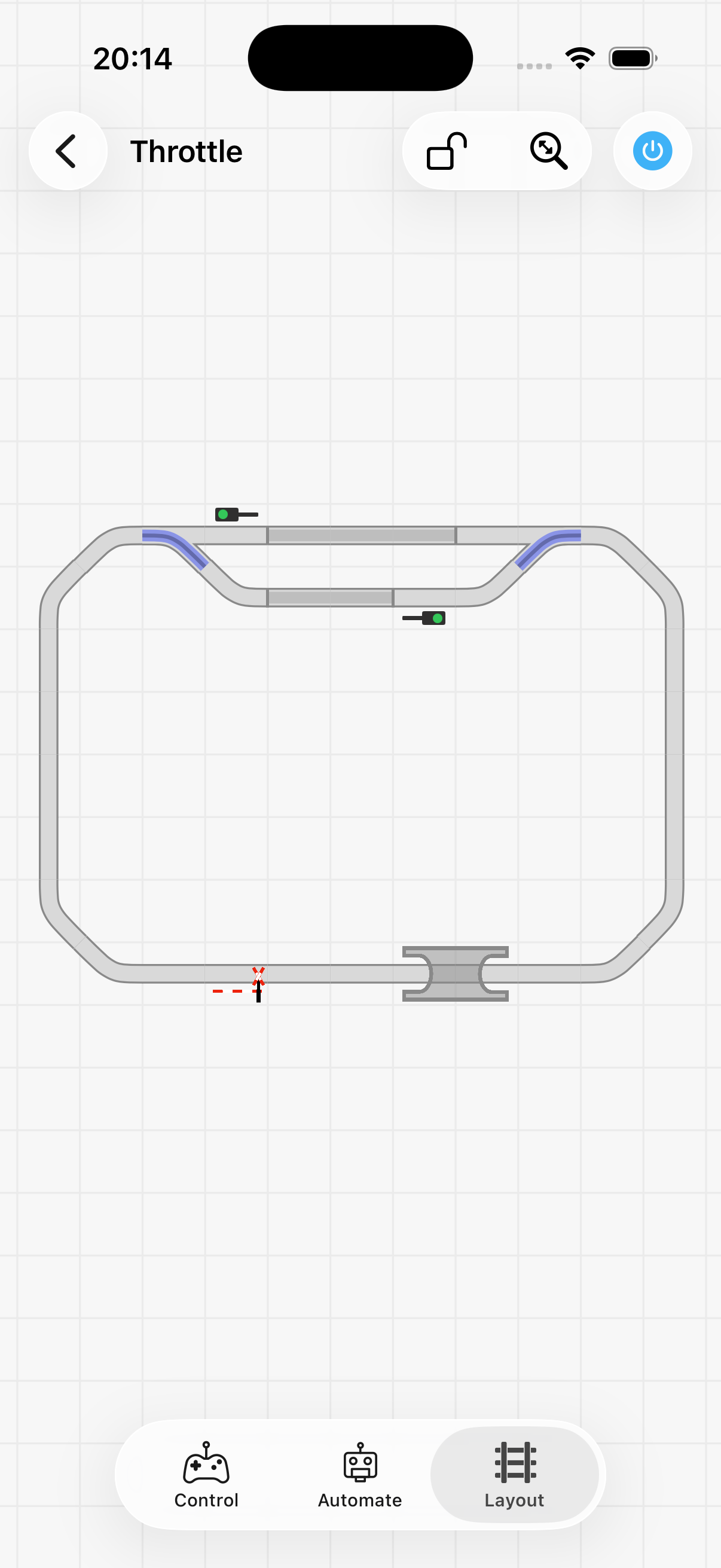
Tap the zoom indicator in the top-right to center the layout on screen. You can configure your track plan in the layout editor.
A small chip in the top-right corner shows the current model clock time and speed at a glance.
Navigation
Tap the navigation icon (turn-arrow) in the top-right toolbar to enter navigation mode. The icon highlights in the brand color while active. Tap it again to leave the mode without driving.
In navigation mode, taps on the layout build a path instead of toggling accessories:
- Tap a track item to mark the start.
- Tap further track items to add the end and any waypoints in between.
- Tap a selected item again to remove it from the path.
If multiple valid paths connect your selection, a path browser at the bottom of the sheet lets you cycle through them. The currently selected path is highlighted on the layout.
Via dispatcher
The Via dispatcher label in the bottom sheet toggles whether the move goes through the Train Dispatcher:
- On (default, highlighted) — Tap GO to ask the dispatcher for a clearance. A notification confirms when the clearance is granted, the turnouts are set, and a clearance bar appears at the bottom. Use its cancel button to release the clearance once the move is complete.
- Off — Tap GO to set the turnouts directly without involving the dispatcher. Useful when you're the only one driving and no scripts are running.
The GO button is green when a valid path is selected and gray otherwise.
Automate
The automate tab gives you control over the automation engine directly from the throttle, allowing you to combine manual driving with automated sequences.
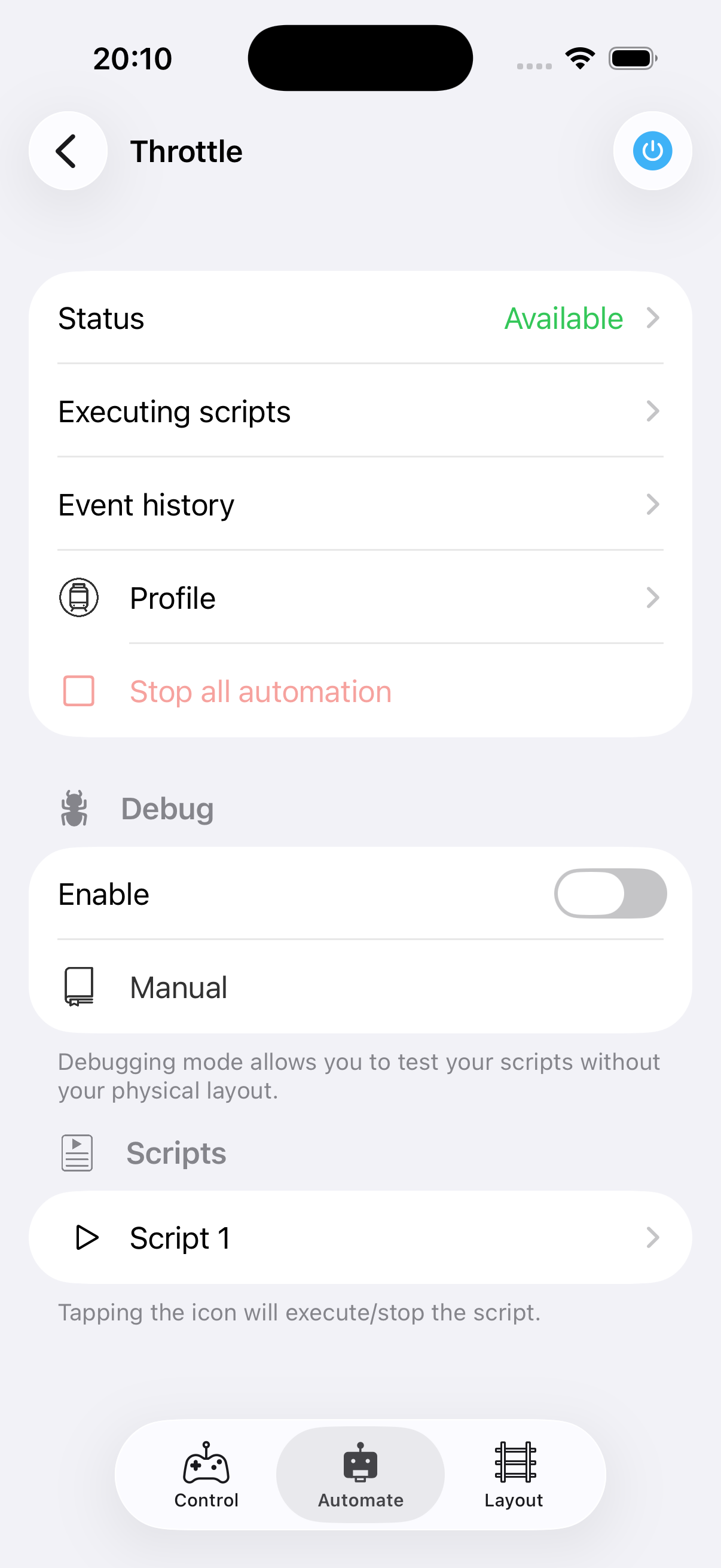
- Status — Shows whether automation is available (track power on and synced), syncing, or unavailable.
- Active scripts — See which scripts are currently running and view the execution history.
- Scripts — Start or stop scripts directly from the throttle.
- Routes — Execute predefined accessory combinations with one tap.
- Flags — Toggle flags that control conditional behavior in your scripts (e.g. enable/disable sound).
- Timetables — Start or stop timetable schedules.
From this tab you can also enter debug mode to test your automation scripts without needing your physical layout.
Main menu
The Model Train Script logo in the top-left opens the main menu, giving you access to:
- Profile — Edit your vehicles, layout, and automation elements.
- Tools — Direct access to accessories, CV programming (Z21), feedback sensors, cameras, protocol monitor (Z21), and application logs.