Train Dispatcher
This tutorial will explain how to use the train dispatcher and how it can be used to mix automated with manual control. Using the Train Dispatcher the right way will make sure no accidents happen.
1. Layout
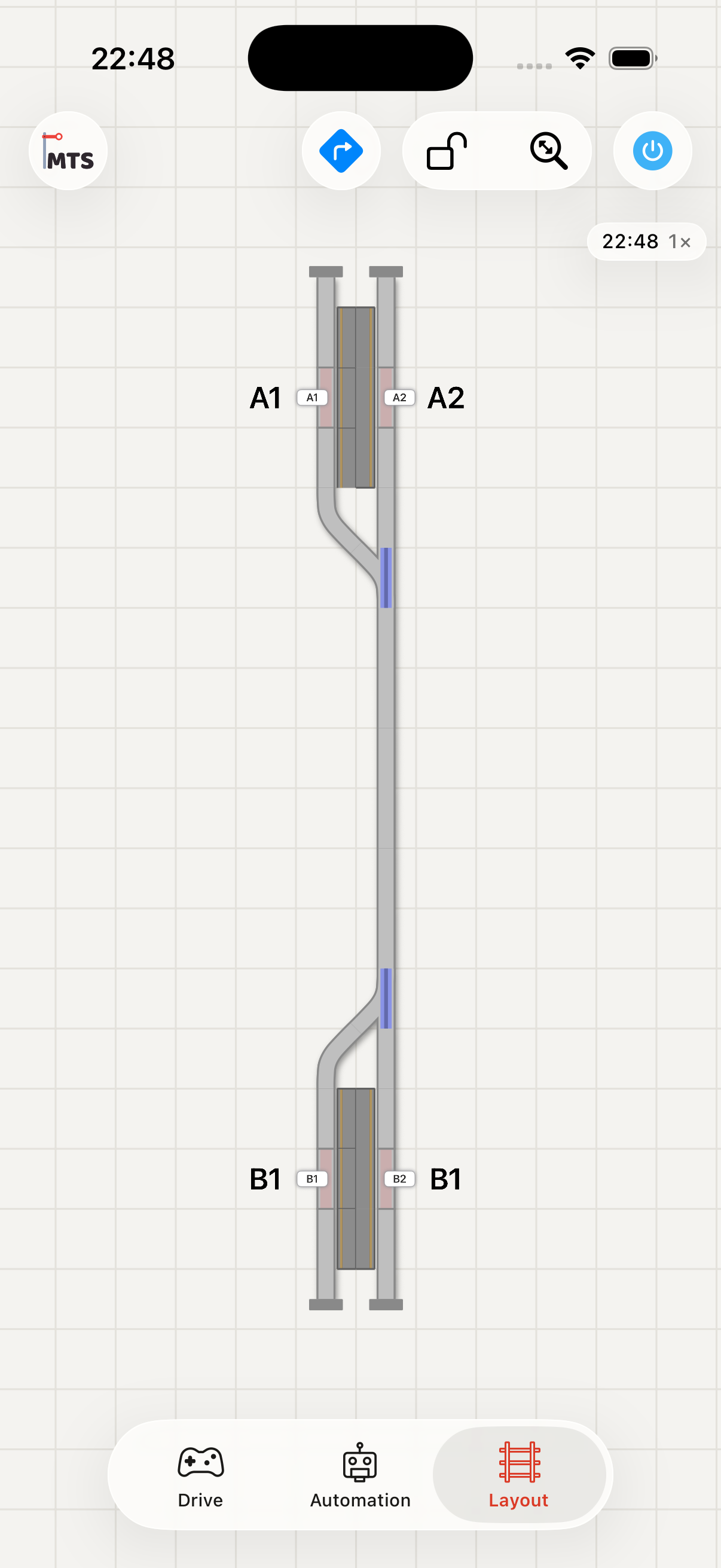
This is our layout. We want our automated train to shuttle between A1 and B1; manually we drive from B2 to A2. Only our stations have multiple tracks, which means both trains have to share the same track. It is up to the train dispatcher to control the traffic.
2. Automated train
We start with making a shuttle script for our automated train. The entire script consists of 4 sections: the outbound journey, waiting at B1, inbound journey, waiting at A1. In this tutorial we show you the outbound only. The shuttle tutorial explains how to let the train shuttle between two positions.
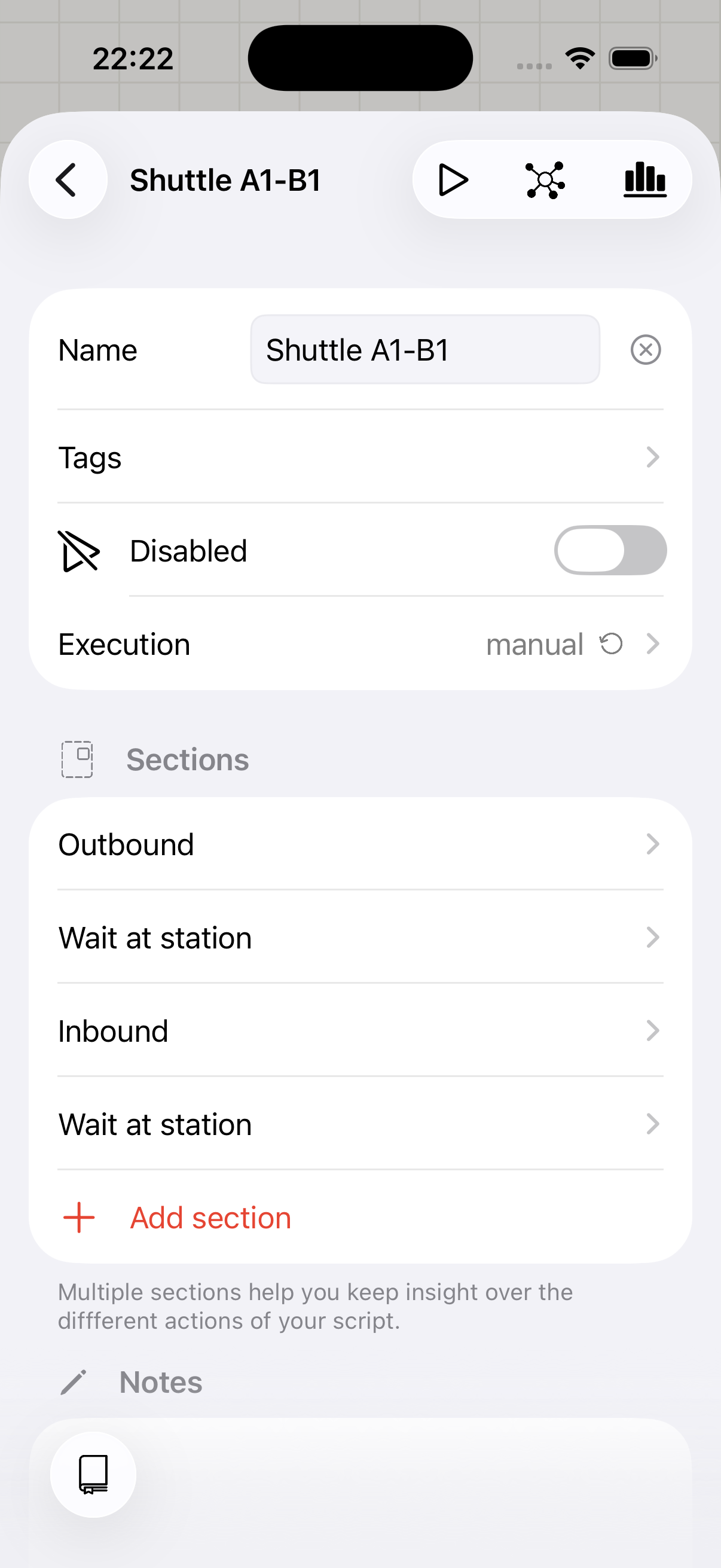
We start our outbound section with a Request clearance action. This action will wait until the train dispatcher gives us permission (clearance) to drive the selected path.
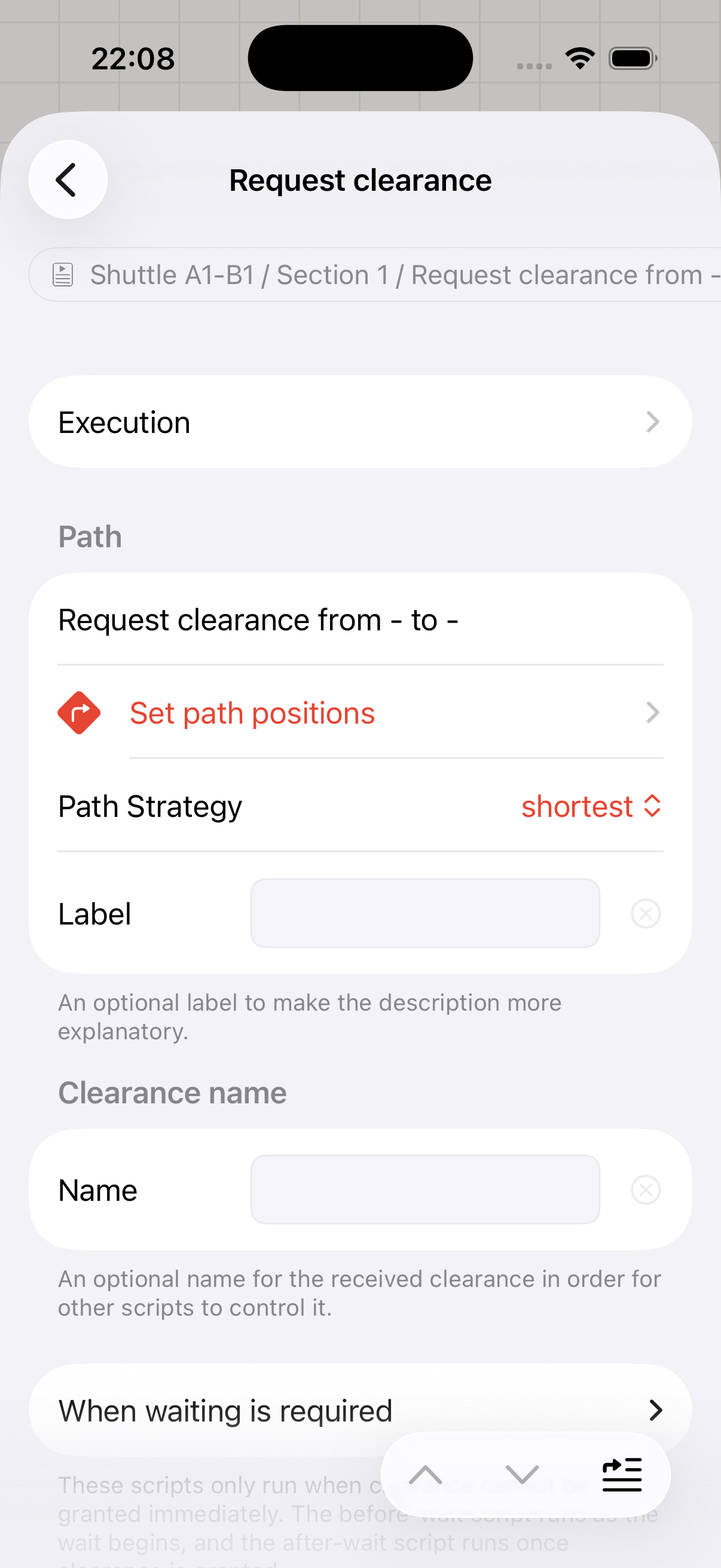
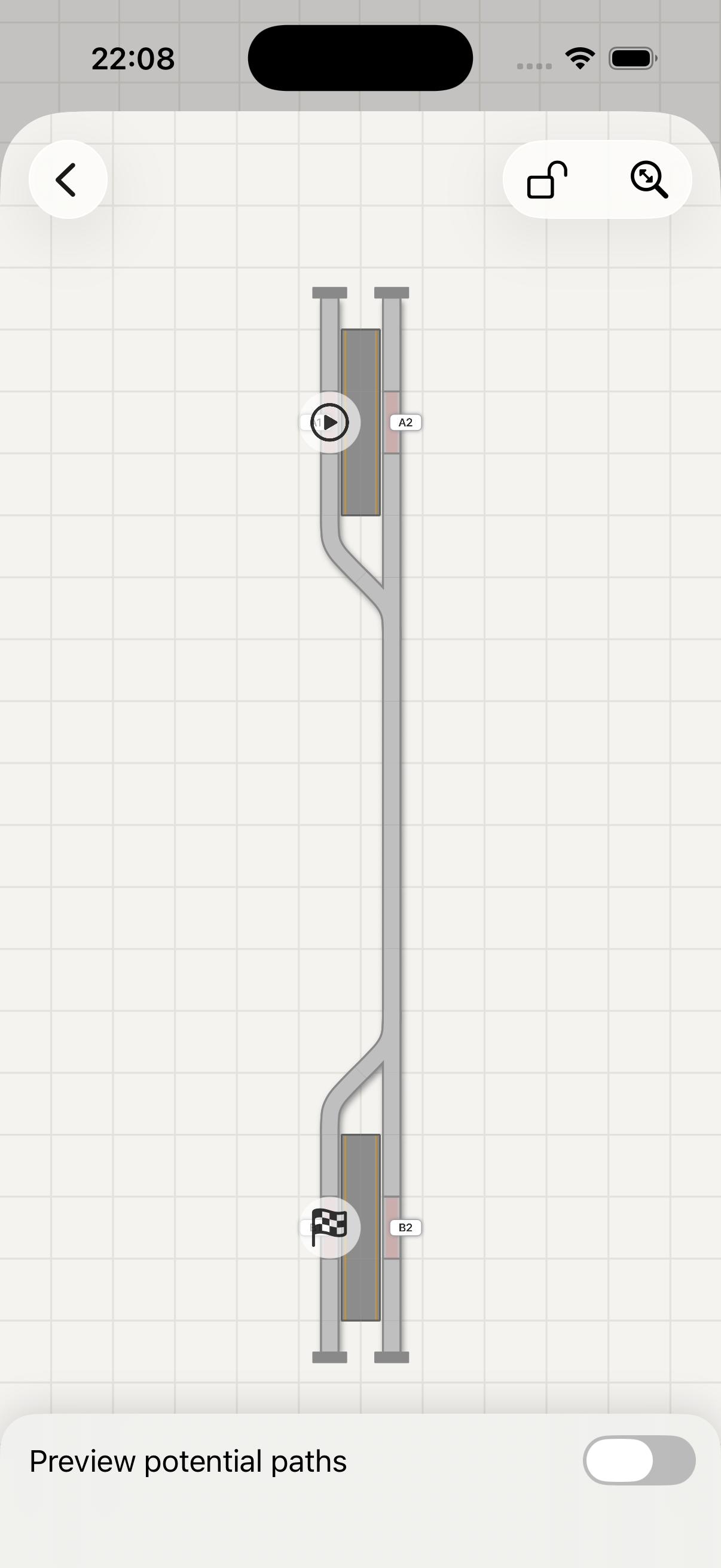
In the path selector we select A1 and B1; MTS will find a path between the two positions.
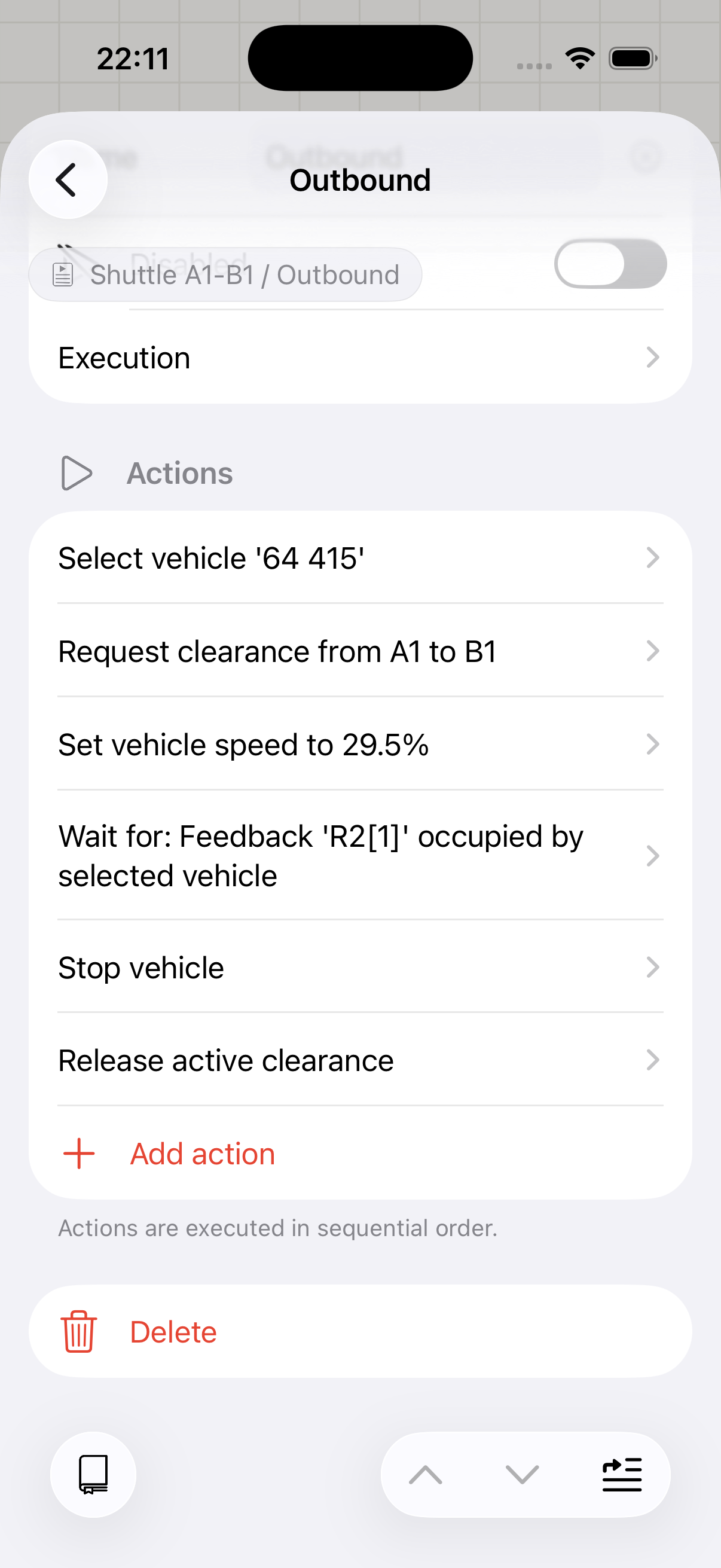
After that we fill in the rest of the section to start our train driving towards B1.
We add a Wait for condition action that waits until the sensor at B1 is active, followed by a Stop action to stop the train.
Since we know at that point our train made it safely, we add a Release clearance action. We tell the train dispatcher it is ok for other trains to drive the path.
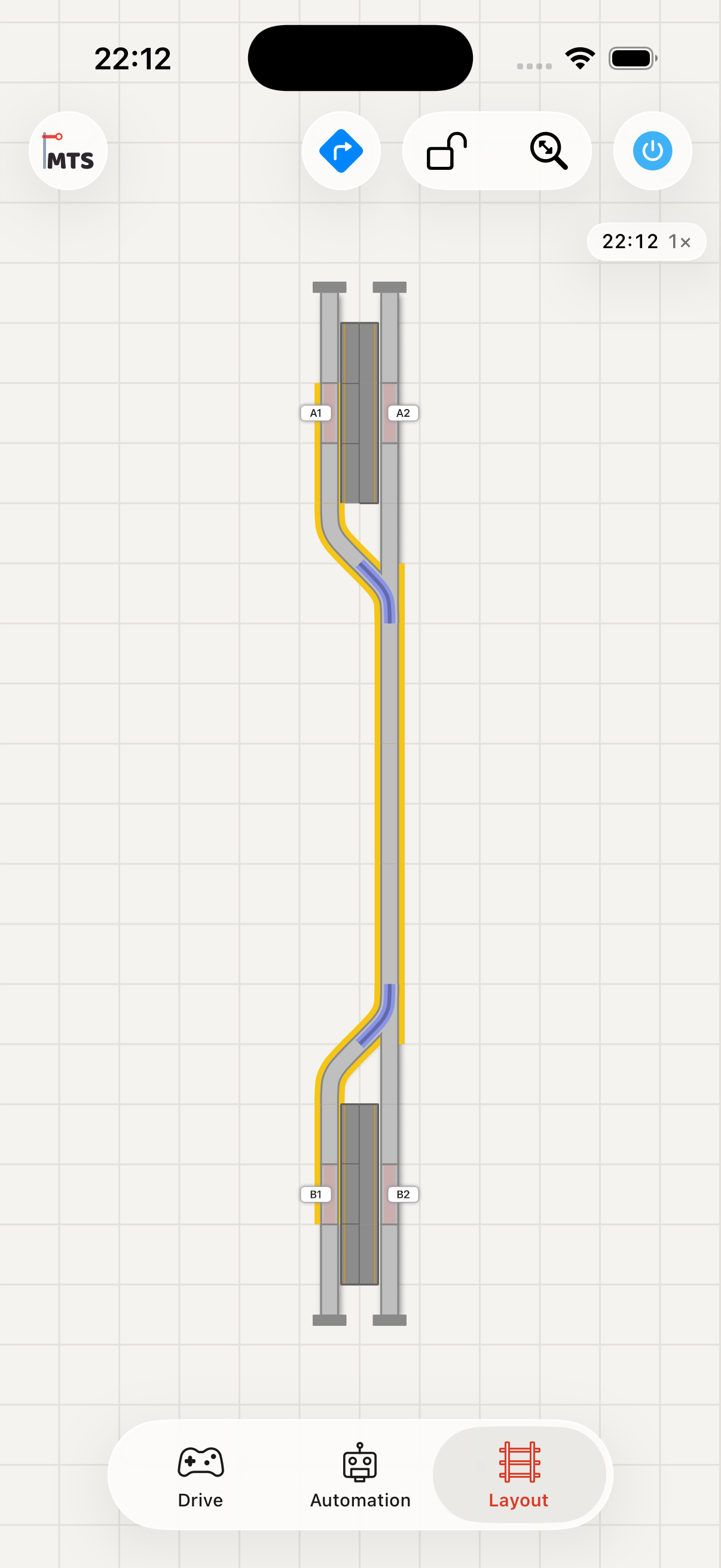
When we run our script we see the received clearance of our automated train in yellow in the layout control.
3. Manual train
With our script the automated train is shuttling between A1 and B1. While it is doing that we want to drive our manual train from B2 to A2.
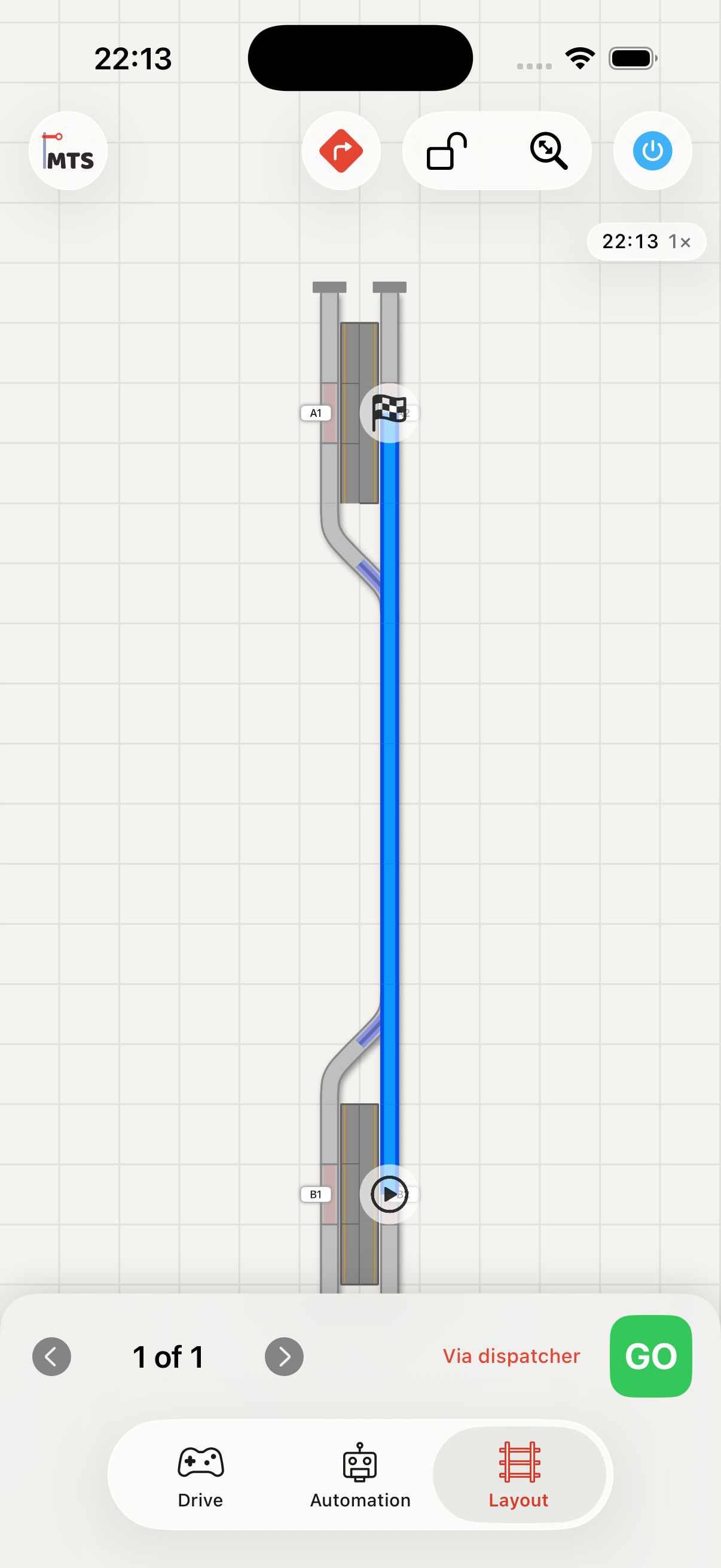
In our layout we use the navigation function. We select B2 as start location and A2 as destination. We make sure the via dispatcher option is enabled (red) and tap GO.
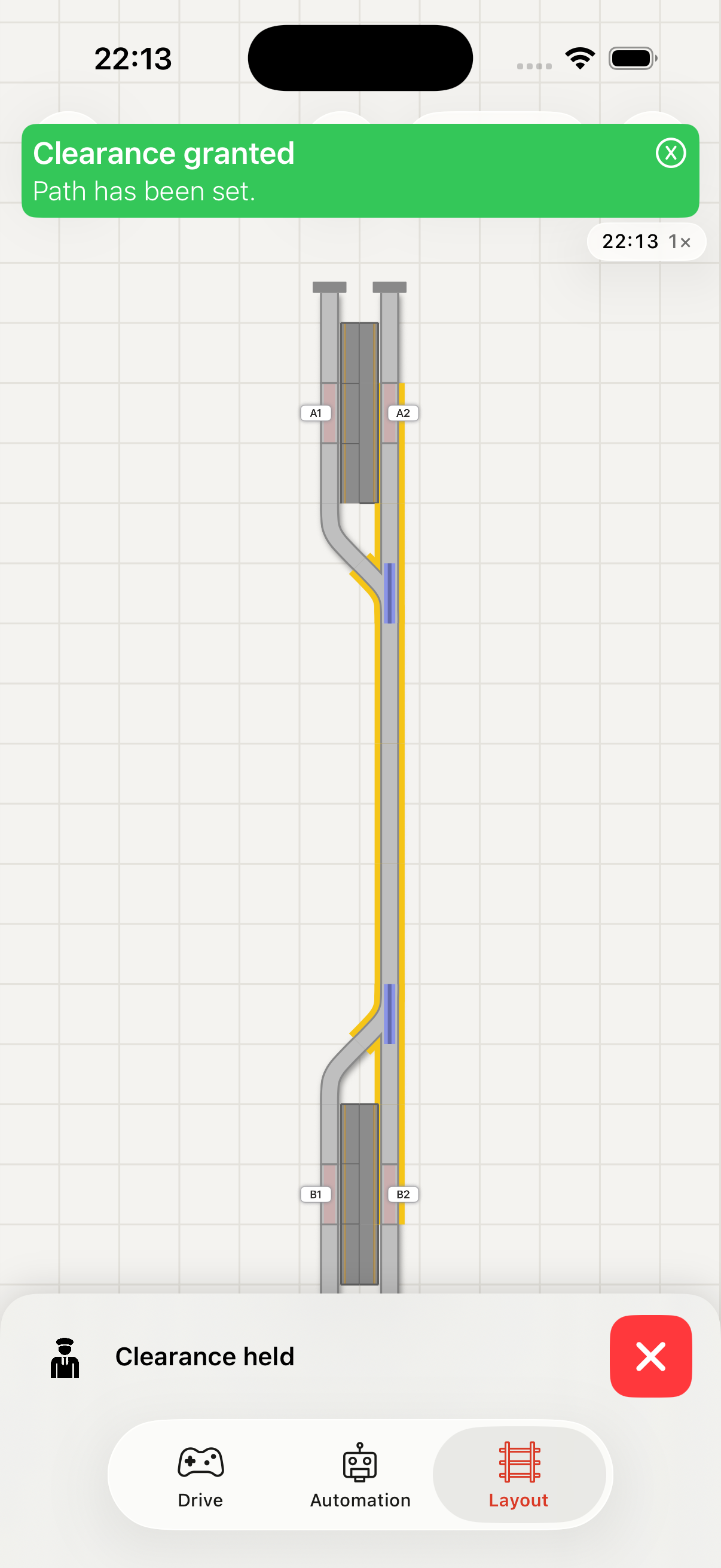
If our automated train has already received its clearance at that point, we will need to wait until it releases the clearance; once available we will receive our clearance.
Now we drive our train manually to A2. Once we are ready we tap the red button in the layout control. That will release our clearance and allow our automated train to get a clearance again for its journey.