Scripts
Scripts are the heart of your layout automation. A script consists of a sequential set of actions, organised into one or more sections.
For a better overview, we recommend organising your scripts in a folder structure.
Configuration
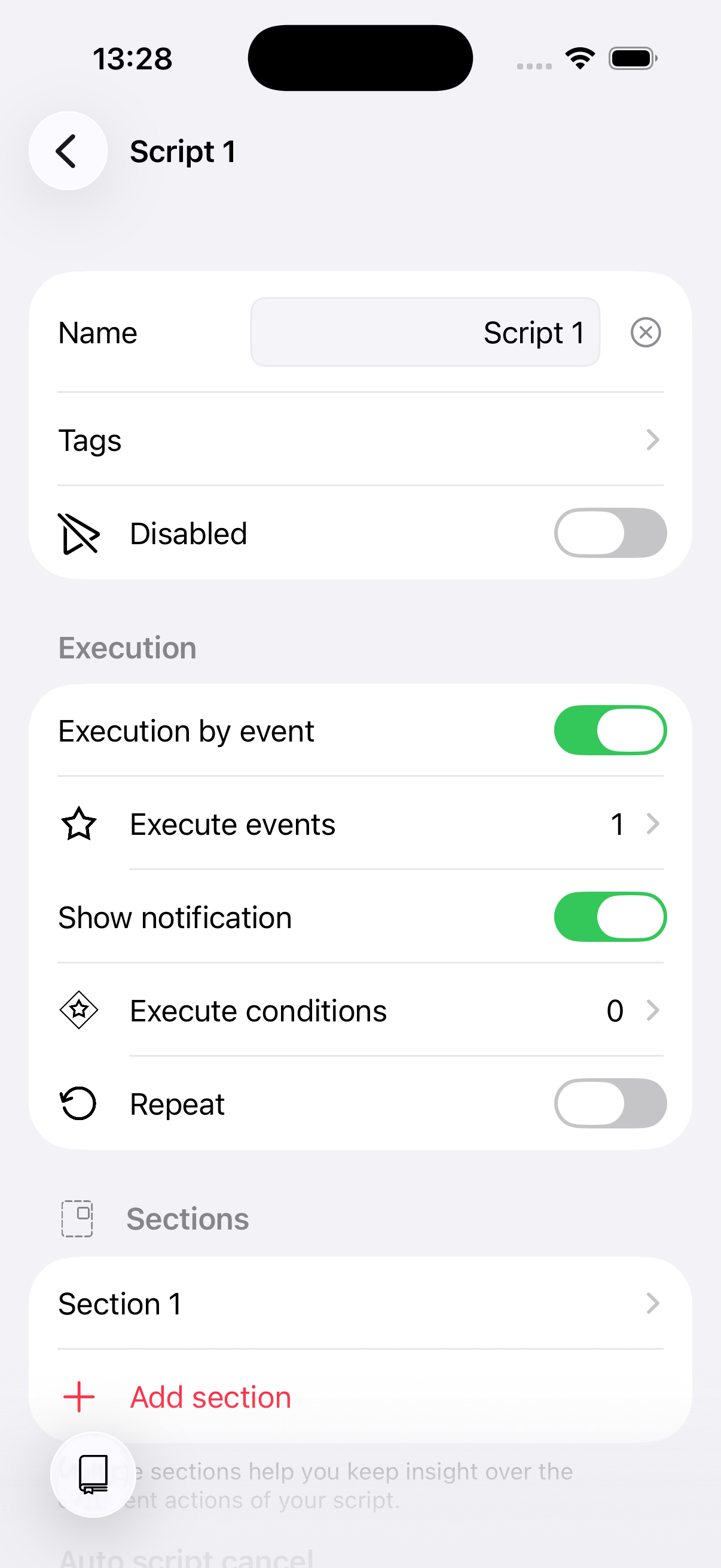
A script has the following configuration options:
| Setting | Description |
|---|---|
| Name | A descriptive name for the script. |
| Tags | Labels used for categorisation and random script execution. |
| Show in throttle | Whether the script appears in the automate tab of the throttle. |
| Disabled | A disabled script cannot be executed — manually or by events. |
| Notes | Free-text notes for documenting what the script does. |
Repeat
A script can be set to repeat. When repeat is enabled, the script runs all its sections and then evaluates the repeat conditions:
- No repeat conditions — The script repeats indefinitely until you manually stop it.
- With repeat conditions — The script repeats only while the conditions are met. You can combine multiple conditions with AND (all must match) or OR (any must match).
Auto cancel
When enabled, the script is automatically cancelled after a configurable timeout (in milliseconds). This is a safety net to prevent scripts from running indefinitely if something unexpected happens.
Show notification
When enabled, a system notification is shown whenever the script starts running.
Execution
A script can be triggered either manually, by an event, or both.
Manual triggered scripts
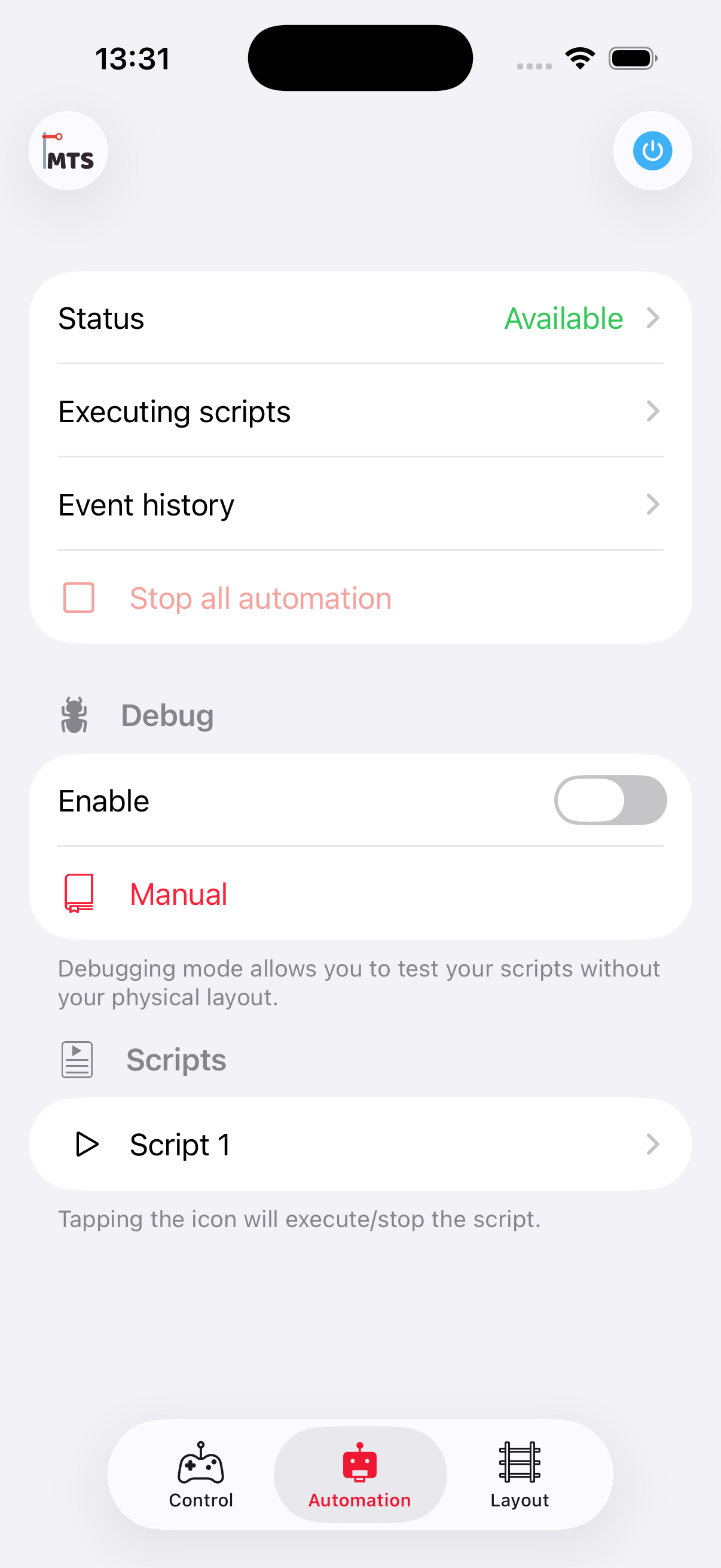
Manual scripts can be triggered
from the automation tab
Manual scripts can be started from the automate tab of the throttle or from within a time table.
Event triggered scripts
Scripts can be triggered by events originating from:
- Accessories — When an accessory changes to a specific state.
- Feedback sensors — When a sensor becomes active or inactive, optionally filtering by a specific vehicle (RailCom). Can auto-select the detected vehicle for use in the script.
- Vehicles — When a vehicle's speed, direction, function, or profile changes.
- Cameras — When a camera detects a vehicle at a detection point.
- Time — At a specific time (hour and/or minute). Supports wildcards — for example, every hour at minute 30.
- Variables — When a variable reaches a specific value.
- System — When the command station connects (startup).
- Scripts — When another script starts, finishes, or is cancelled.
A script can have multiple execution events — any of them will trigger the script.
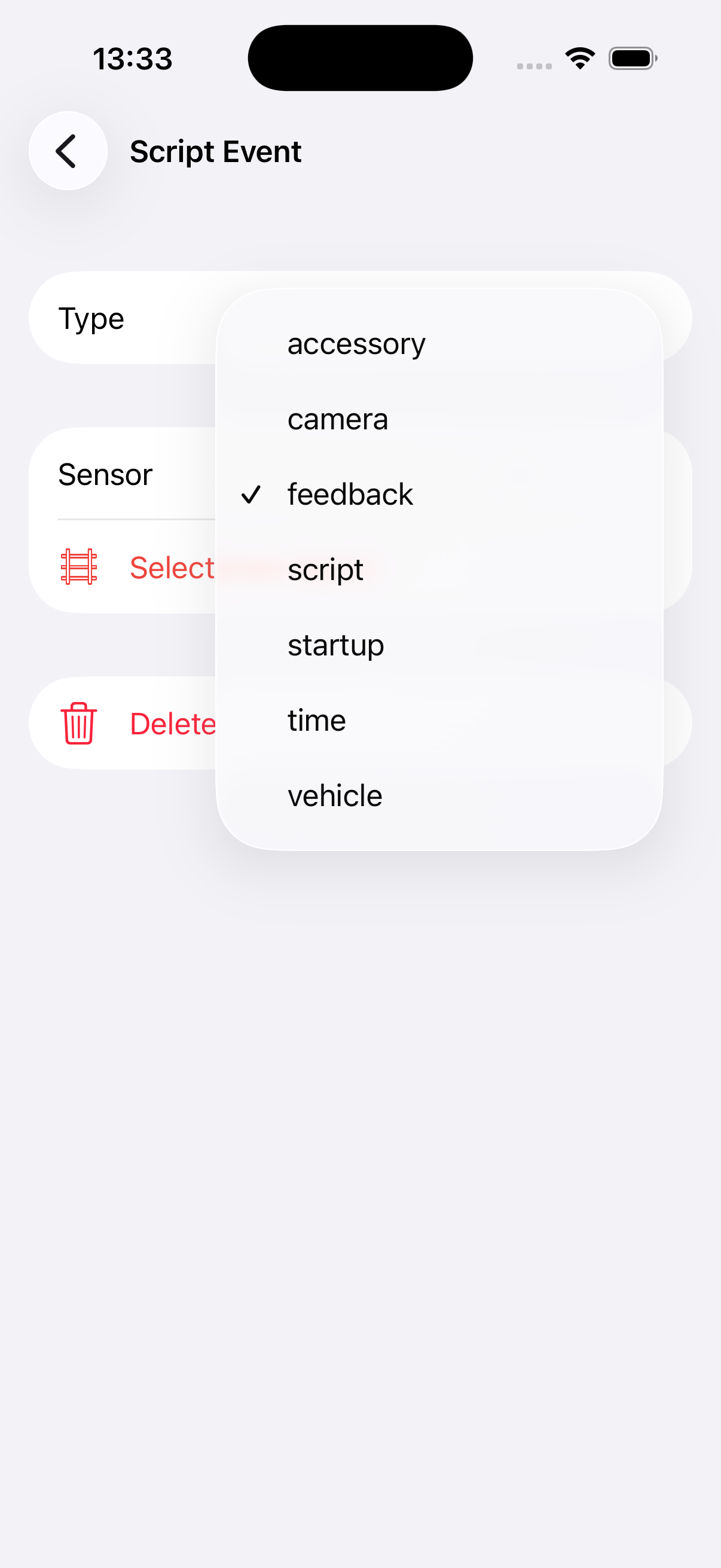
Different types of
execution events
Execute conditions
Event-based scripts can also define conditions for execution. Even when an event triggers, the script only runs if its conditions are met. You can combine multiple conditions using AND (all must match) or OR (any must match).
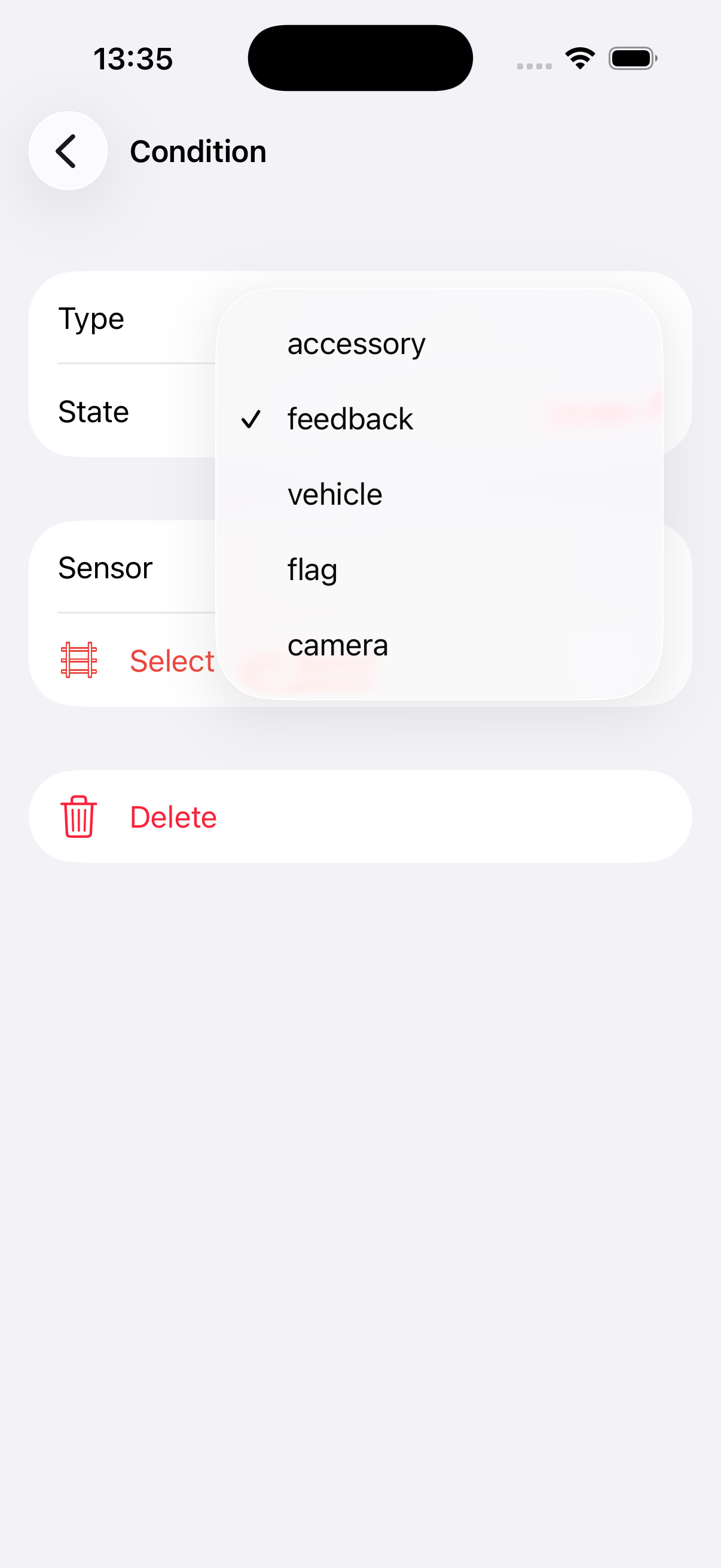
Different types of conditions
Conditions can be defined for accessories, feedback sensors, vehicle state, flags, variables, or camera detection.
Sections
A script is divided into sections. Sections let you organise your actions into logical groups to keep an overview of what can become many sequential steps. For example, you might have sections like "Depart from station A", "Travel to station B", and "Arrive at station B".
You can create and reorder sections using the edit and add buttons in the top bar.
Execution log
When a script runs, each action's execution is logged. You can view the log to see exactly what happened, including timing, results, and any captured images (e.g., from camera detection or path finding). This is helpful for debugging scripts.
Examples
For inspiration or a better understanding of the features, have a look at the tutorials or the examples.